Most of what we write about on this site is games, but the tyttoot catalogue also has a handful of small utility apps. On the morning of 20 October 2026 we opened four of them in a desktop browser, nothing installed, and used each one for a few minutes. Here is what they do, what we saw on screen, and when you might actually reach for them.
| Tool | What it does | Good for |
|---|---|---|
| Count Anything | counts objects in a photo, by AI or by your own taps | stock, seeds, coins, a group photo |
| Dead Pixel | full-screen colour and touch tests | checking a new or second-hand screen |
| Personal Calculator | a Basic and an Advanced calculator | quick sums and a few scientific keys |
| PaperBook | a notebook sorted into themed groups | journals, ideas, study notes |
Count Anything: tell it what to count, then check its markers
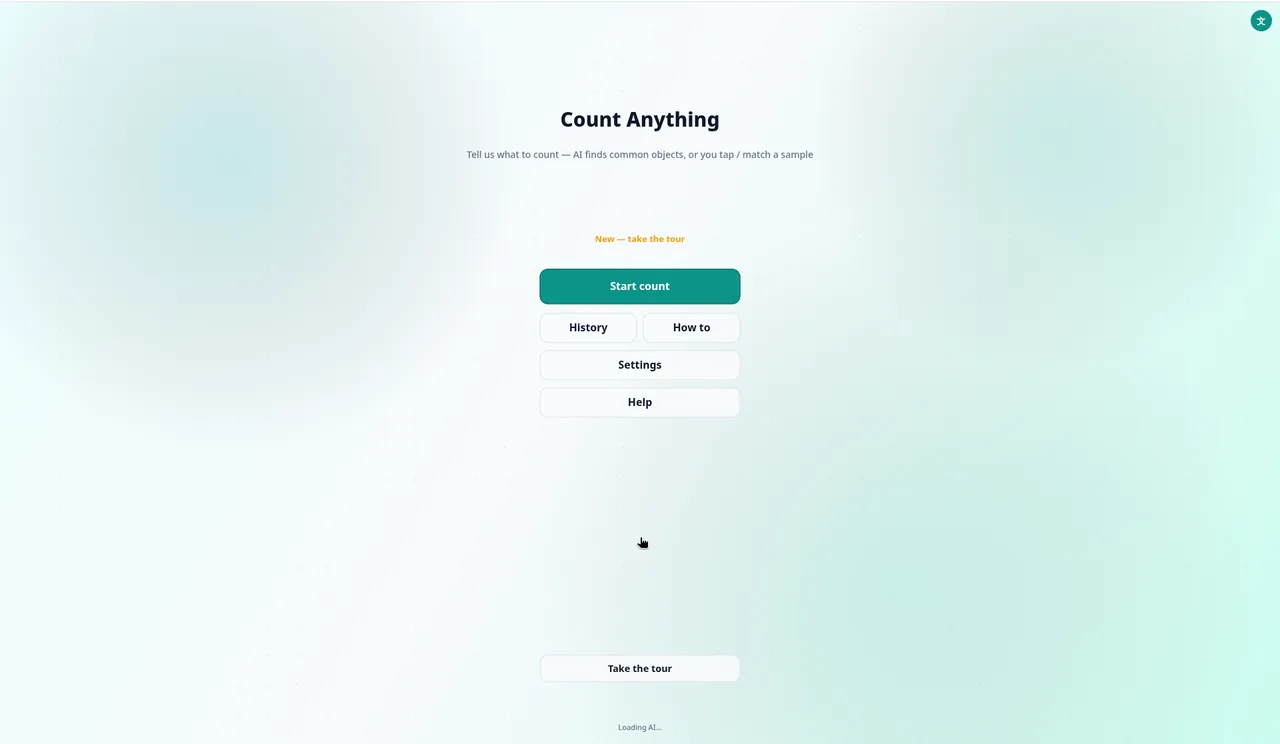
The home screen sums the idea up in one line: "Tell us what to count — AI finds common objects, or you tap / match a sample". Below it are Start count, History, How to, Settings, Help and a Take the tour button for first-timers.
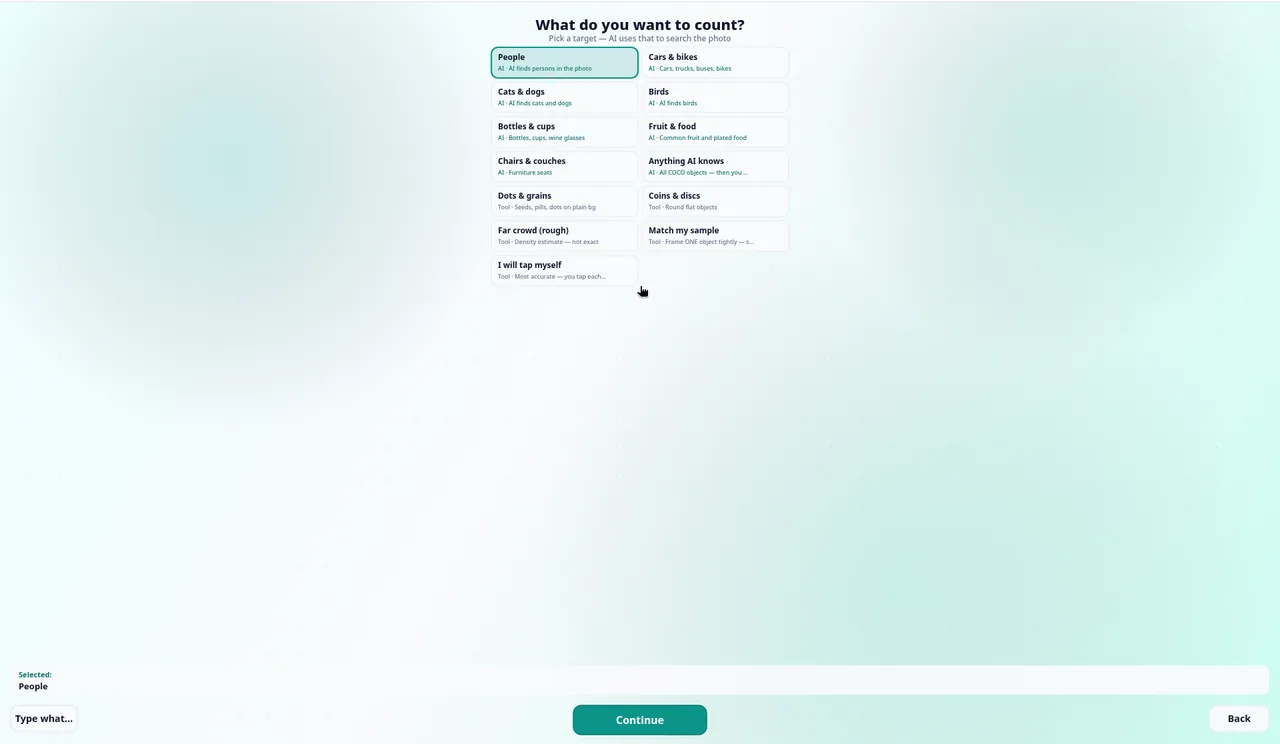
Start count opens "What do you want to count?", a list of targets. Some are marked AI (People, Cars & bikes, Cats & dogs, Birds, Bottles & cups, Fruit & food, Chairs & couches, Anything AI knows), and some are marked Tool, meaning a simpler method aimed at one job: Dots & grains, Coins & discs, Far crowd (rough), Match my sample and I will tap myself. The "Far crowd" entry is honest about itself: its note reads "Density estimate — not exact".
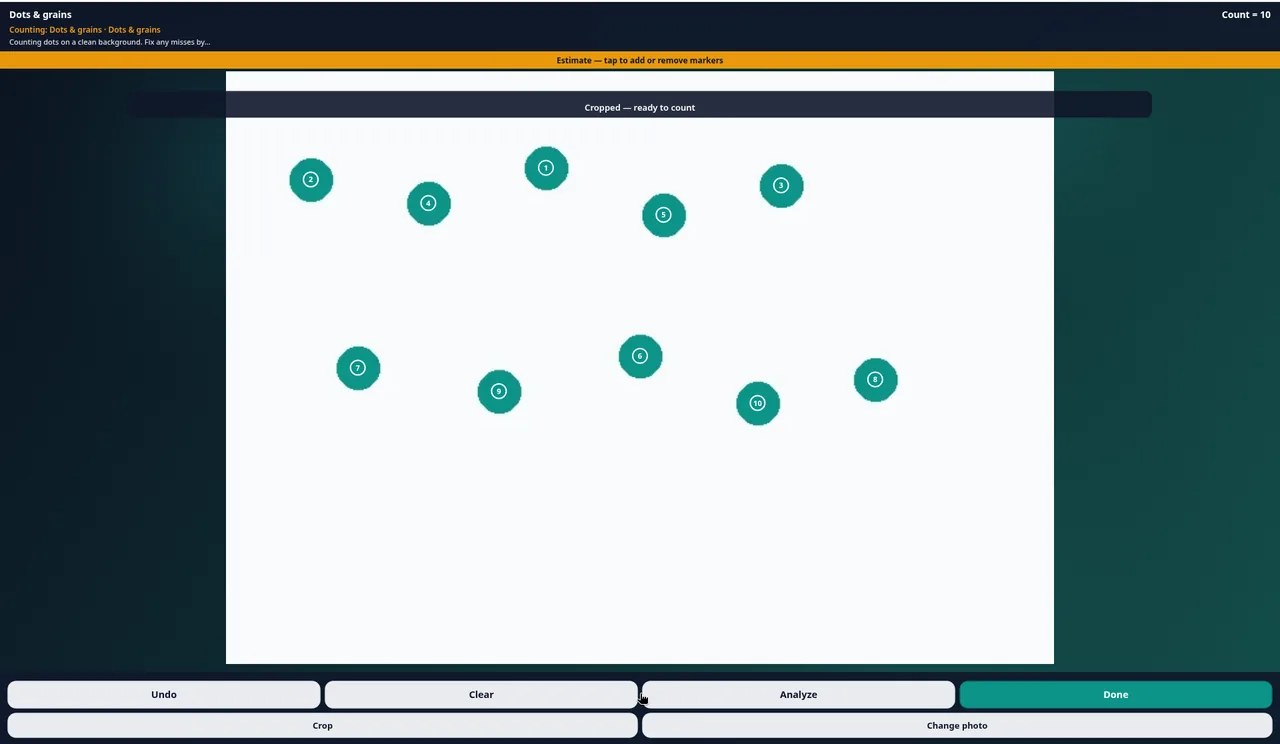
We picked I will tap myself, then chose an image source. You get Camera, Gallery or "Sample photo (10 dots)", and the small print says the sample switches to Dots & grains mode. We used the sample so we didn't have to share a real photo. After a crop step, the app placed a numbered marker on each dot and the header read Count = 10. The orange bar says "Estimate — tap to add or remove markers", and that's the important habit: the number is a starting point, and you fix any misses by tapping before you press Done.
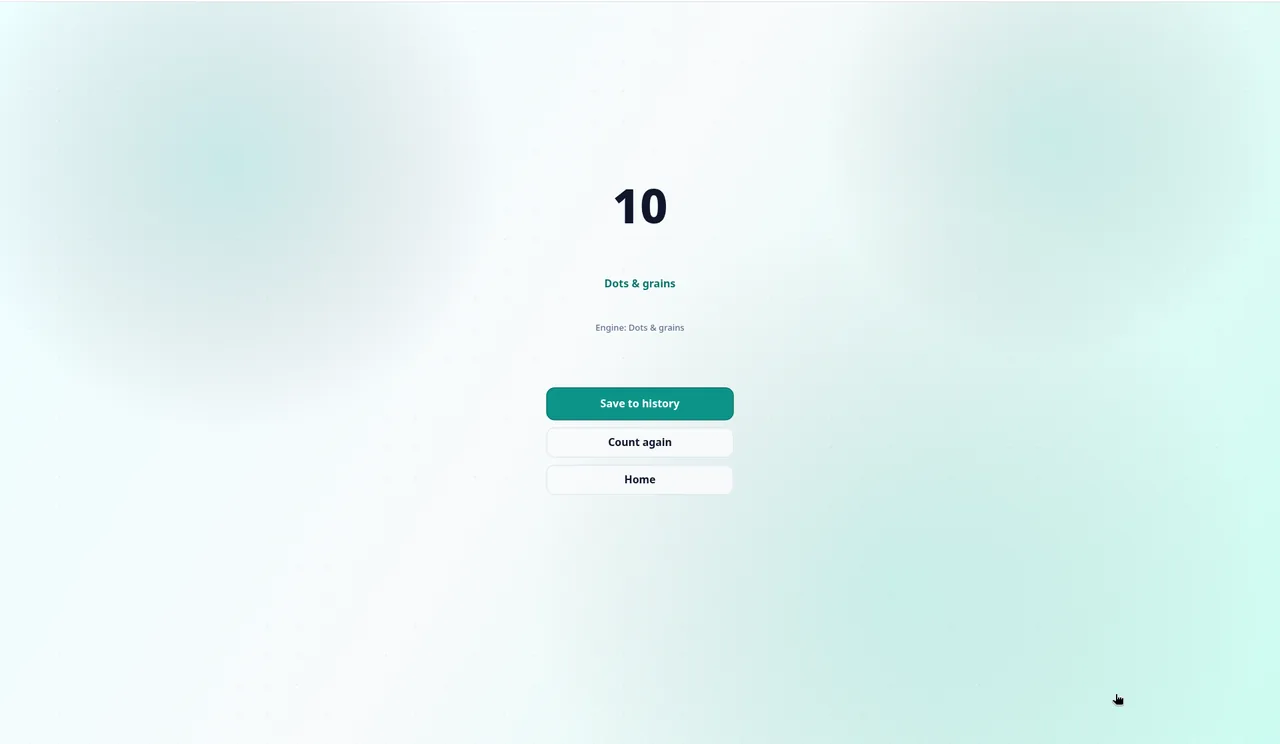
Done shows the total in large type with the engine it used ("Engine: Dots & grains") and three choices: Save to history, Count again or Home. A short "How satisfied are you?" card with stars and tags such as Accurate or Wrong count popped up next; Not now skips it. The saved count then sat in History with its date and time (10/20/2026, 8:41:55 AM in our case), each row with its own Del button and a Clear all at the bottom.
Tip: for anything that matters (stock counts, pills, a classroom headcount), use the AI target to get close, then zoom in on the markers and correct them by hand. The app says "Estimate" for a reason.
Dead Pixel: thirteen tests for a screen you're not sure about
Dead Pixel is a checklist of screen tests on one dark page. Each card has a one-line explanation, which makes it easy to know what you are looking for:
- Solid Colors: uniform fills reveal dead or stuck pixels.
- RGB Bars: primary stripes expose colour channel faults.
- Fine Grid and Checkerboard: single-pixel lines and alternating pixels.
- Gradient: smooth ramps reveal banding and tint shifts.
- Touch Test, Touch Move, Multi-Touch, Pinch, Edge Sweep, Hover and Pressure: for touch screens and styluses.
- Vibration: fires test pulses on a phone's vibration motor.
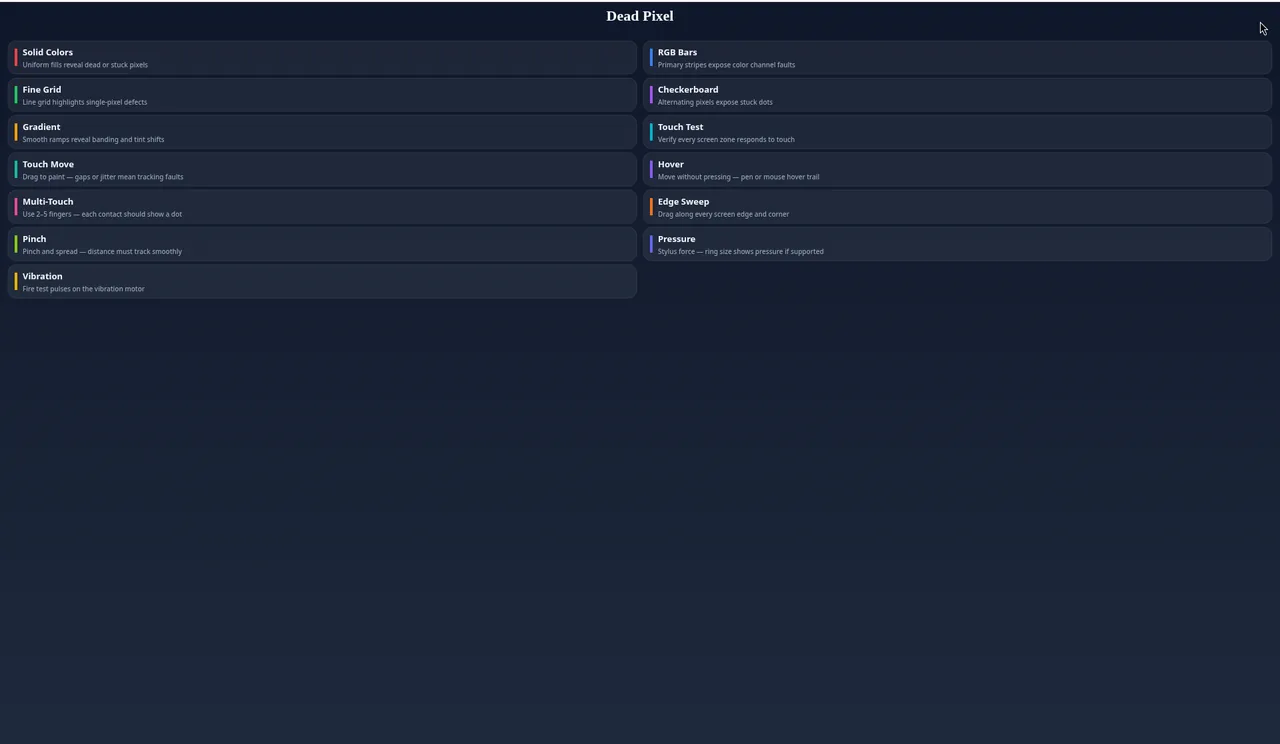
We ran Solid Colors first. The screen fills with one colour, and each tap moves on: black, white, red, green, blue. A stuck pixel shows up as a dot that keeps its own colour while everything around it changes, and a dead one stays dark on the white screen. Then we tried RGB Bars, which puts red, green, blue, white and black side by side so you can compare them at a glance.

Tip: clean the screen and turn the brightness up before you start, then look slowly from corner to corner on the black and white fills. A speck of dust can pass for a stuck pixel until you wipe it. This one is worth a minute before you buy a second-hand phone or laptop, while you can still hand it back.
Personal Calculator: Basic and Advanced on two tabs
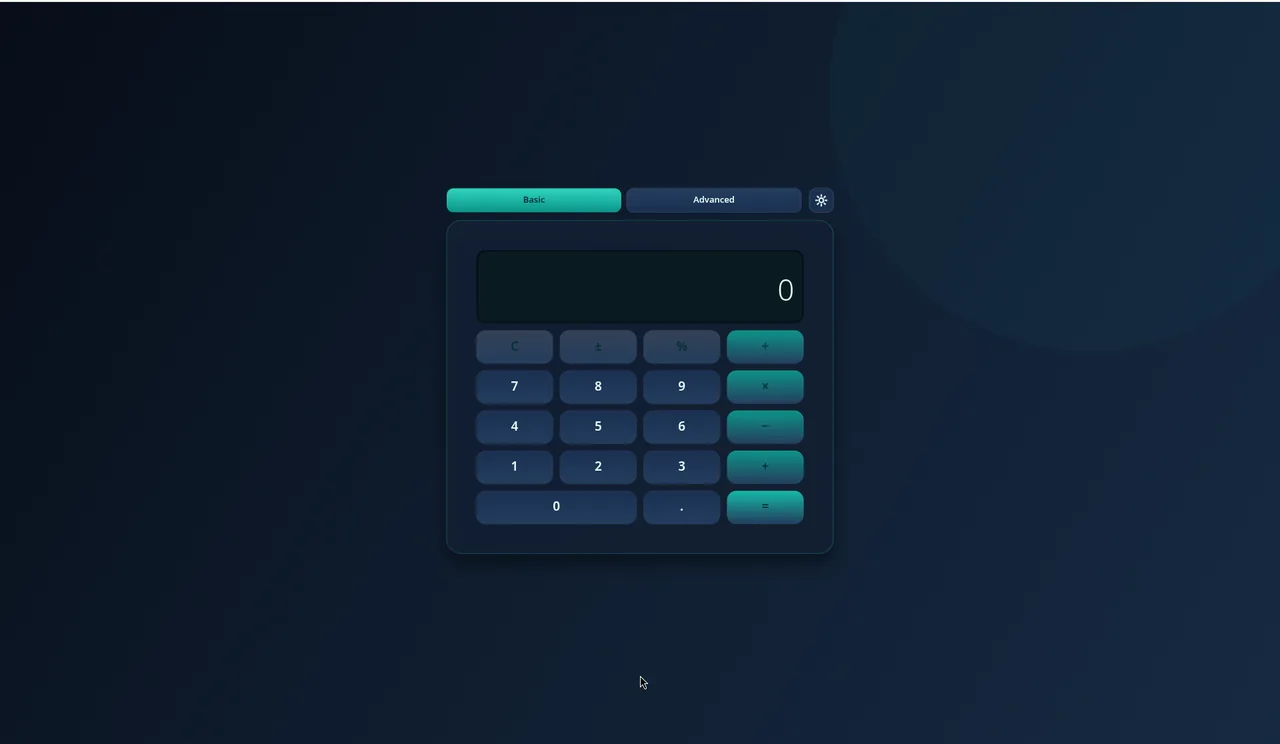
Personal Calculator opens on a dark, rounded keypad with two tabs at the top, Basic and Advanced, plus a small sun icon to switch the theme. Basic has the digits, the four operations, C, ± and %. We multiplied 1250 by 12 and got 15000, as you would hope. The % key divides by 100, so typing 48 × 15 % gave 15% of 48. The display showed 7.200000000 rather than a tidy 7.2, which is fine to read but takes a second glance.
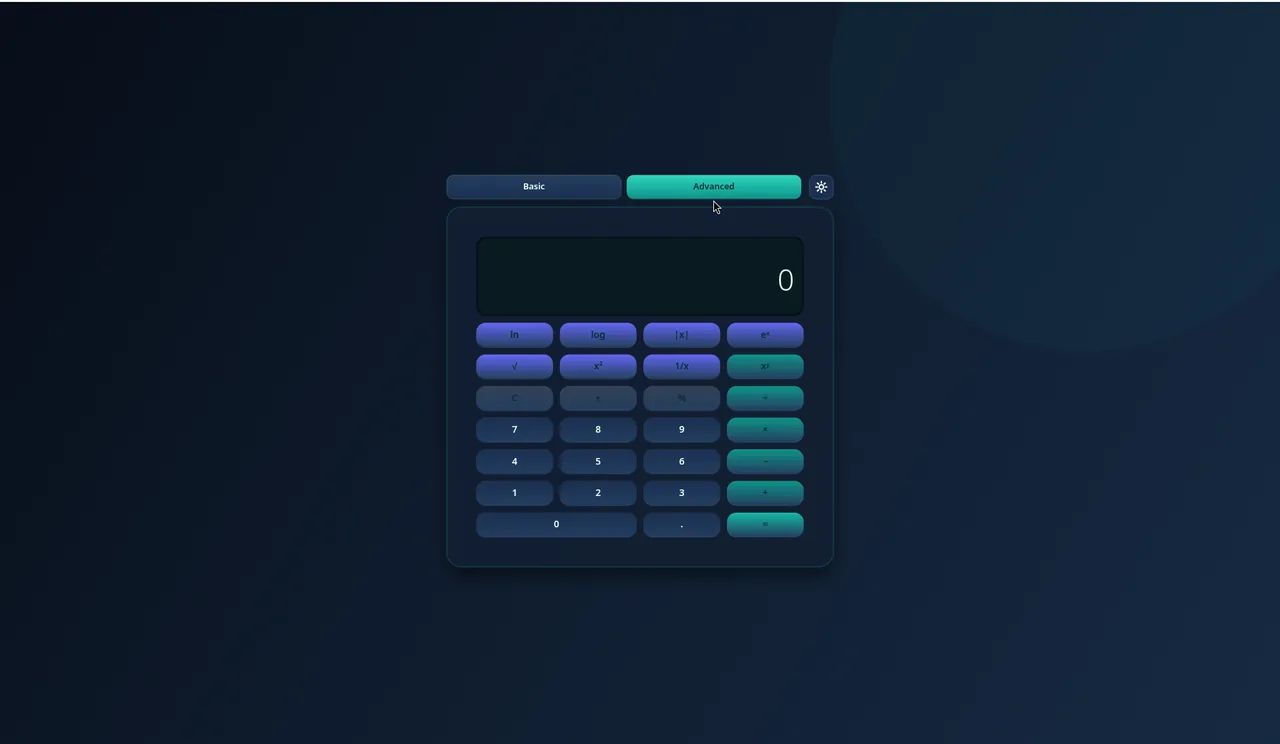
The Advanced tab adds two rows above the same keypad: ln, log, |x|, eˣ, √, x², 1/x and xʸ. That's enough for homework checks or a quick square root, though not a full scientific calculator.
Tip: on a desktop we found clicking the keys more dependable than typing on the keyboard, so press C and start again if a digit looks wrong.
PaperBook: a notebook that asks for a theme first
PaperBook greets you with "Welcome back — Choose a theme before you write". Notes live in groups that already have a purpose: Journal (write each day), Ideas (catch quick thoughts), Goals (track what matters), Study (learning notes), Feelings (gentle check-ins), Memories (keep moments) and Other. The sidebar adds Favorites, Archived, Trash and a Dashboard, and Add group lets you make your own.
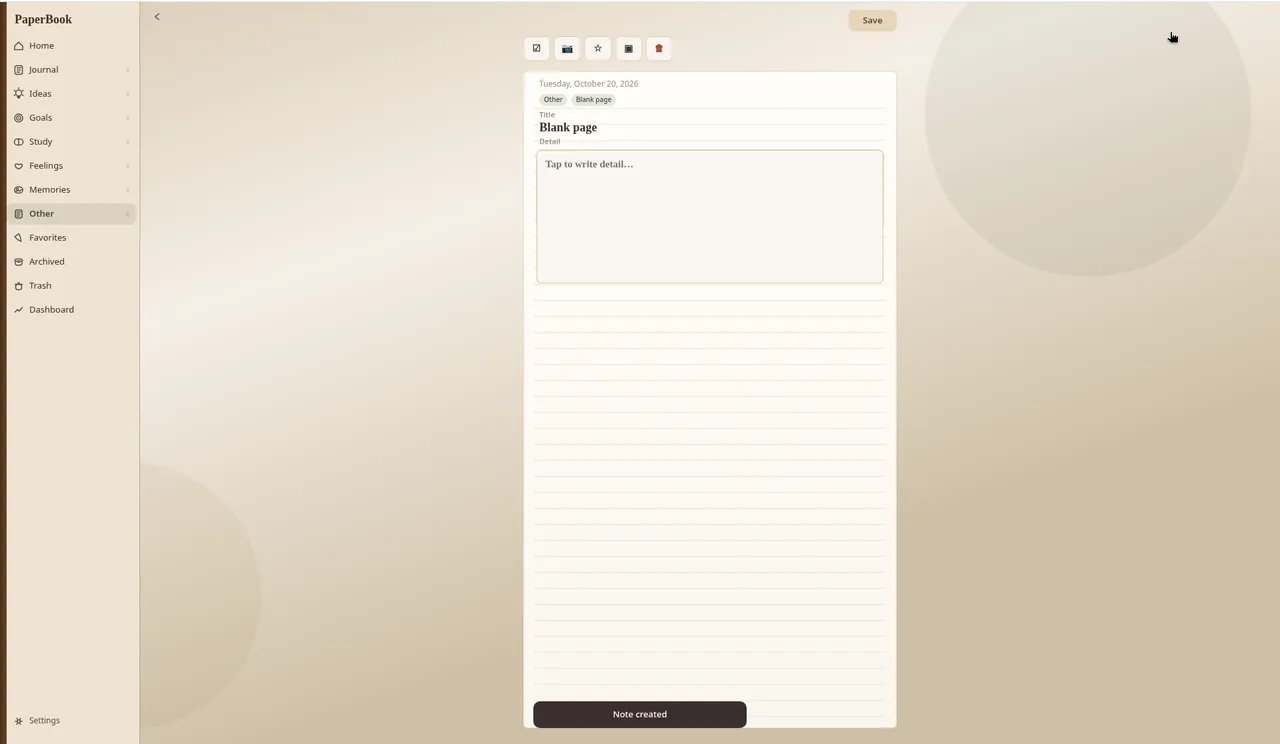
We opened Other and chose New page. A "Note created" message appeared and we got a lined page dated Tuesday, October 20, 2026, with a Title, a Detail box ("Tap to write detail…") and a row of small icons above the page, including a checklist, a photo, a star and a red delete button. The page stays marked Unsaved until you press Save.
Tip: pick the group before you start writing, because it decides where the page lives, and press Save before you click away.
Which one to keep in a bookmark
If you only bookmark one, make it Dead Pixel: it takes a minute and can save you from a bad purchase. Count Anything is the most surprising of the four, and it's worth trying the sample photo just to see how the markers work. Personal Calculator and PaperBook are simple, calm everyday tools. All four open in a desktop or phone browser at tyttoot.com, and the Play boxes list other platforms only where a version is actually available.