Origami Art is a paper-folding guide, not a score-chasing game. You pick a model from a thumbnail catalog, then follow real photographs of each fold in a fullscreen viewer. The UI looks like washi paper: cream background, soft cards, and a thin red accent on every model tile.
We played the web version on 9 October 2026 in a 1280×800 desktop window. Everything below is what that build showed us. No account, no sign-in — the catalog opened after a short load screen with the tyttoot mark and a progress bar.
The catalog
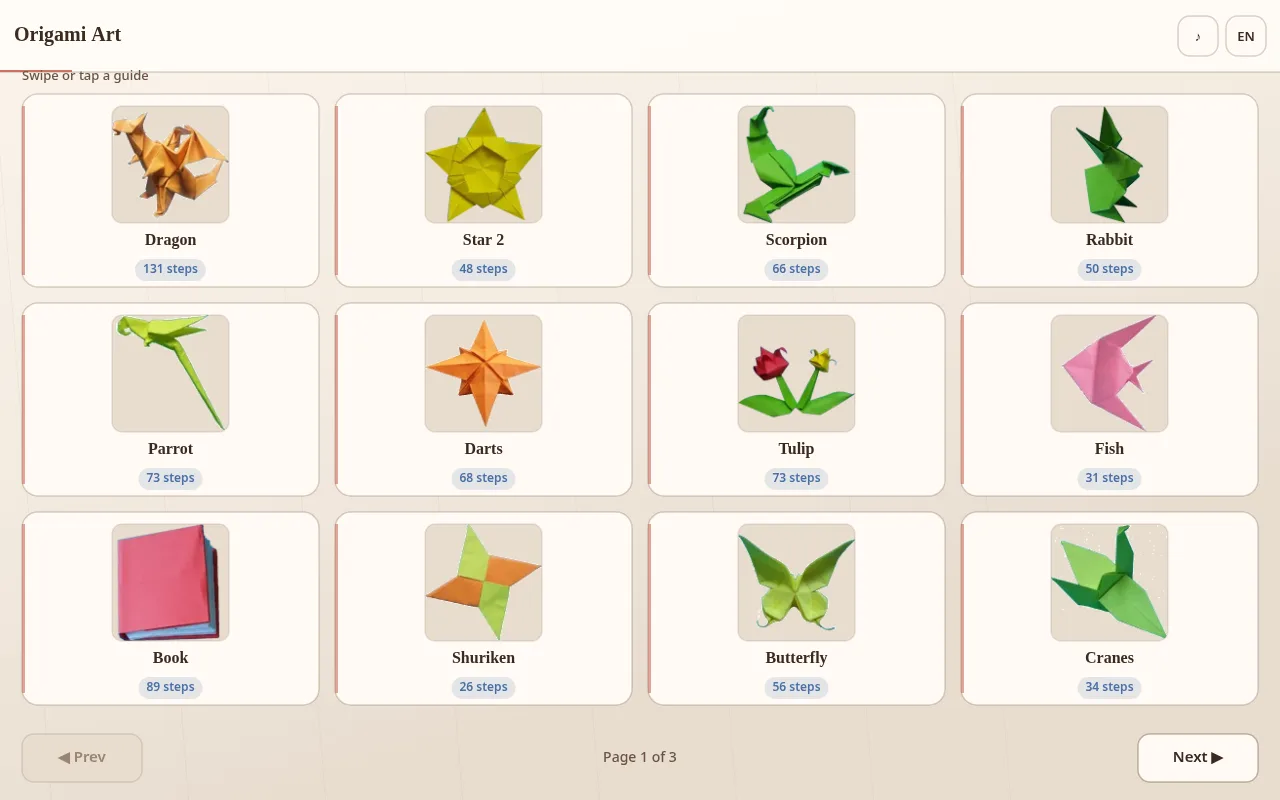
The home screen is a grid of cards. Each card shows a photo of the finished model, its name, and how many photographed steps it needs. Faint red text under the title says Swipe or tap a guide. Bottom centre reads Page 1 of 3, with Prev (dim on page 1) and Next. Swiping sideways also changes pages — that worked more reliably for us than hunting the Next hit area with a mouse.
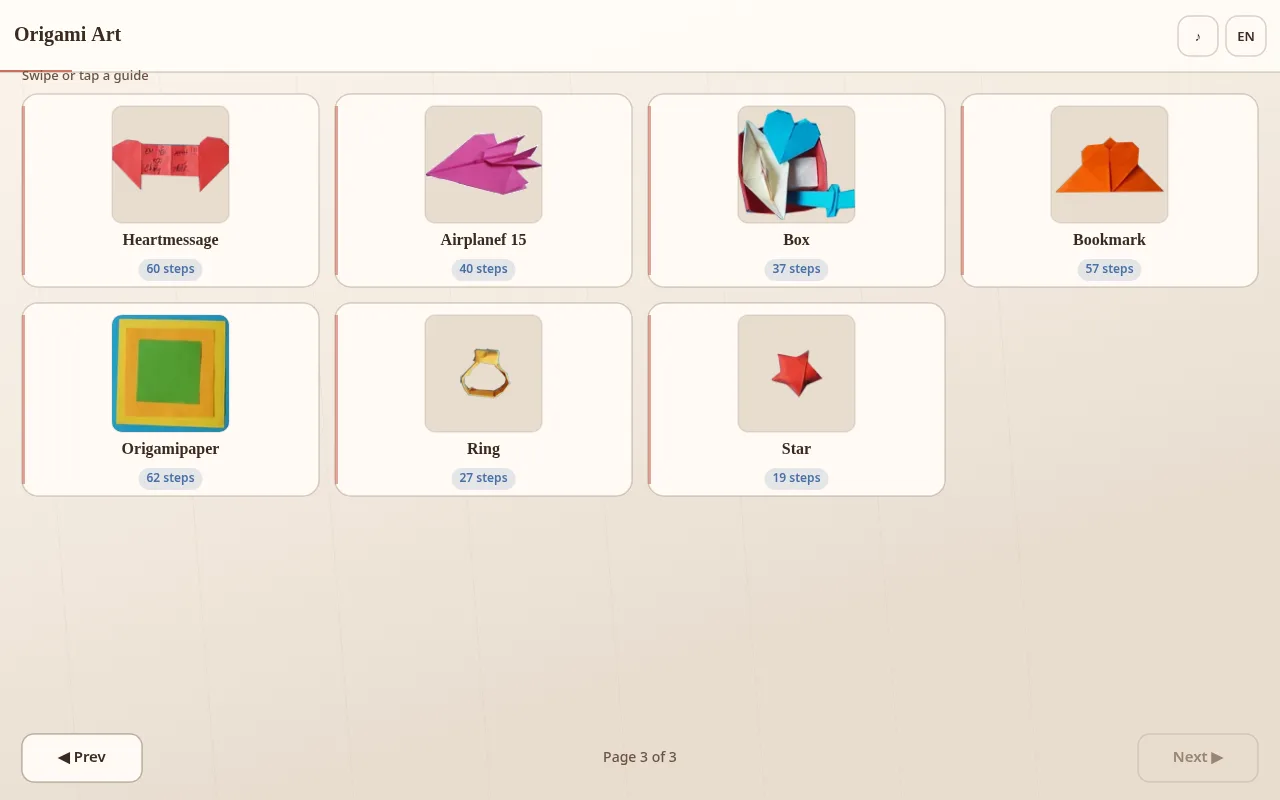
We counted 31 models across the three pages (12 + 12 + 7), which matches the release notes. A few names from our session, with the step counts the badges showed:
| Model | Steps | Page |
|---|---|---|
| Airplane | 17 | 2 |
| Star | 19 | 3 |
| Spinningstar | 24 | 2 |
| Shuriken | 26 | 1 |
| Heart | 27 | 2 |
| Ring | 27 | 3 |
| Fish | 31 | 1 |
| Boat | 33 | 2 |
| Cranes | 34 | 1 |
| Dragonfly | 202 | 2 |
| Dragon | 131 | 1 |
Top right has an EN language chip and a small icon control. We left the language on English for this session. The tip line, Back/Next labels and step chrome all stayed in English while we folded.
Opening a model
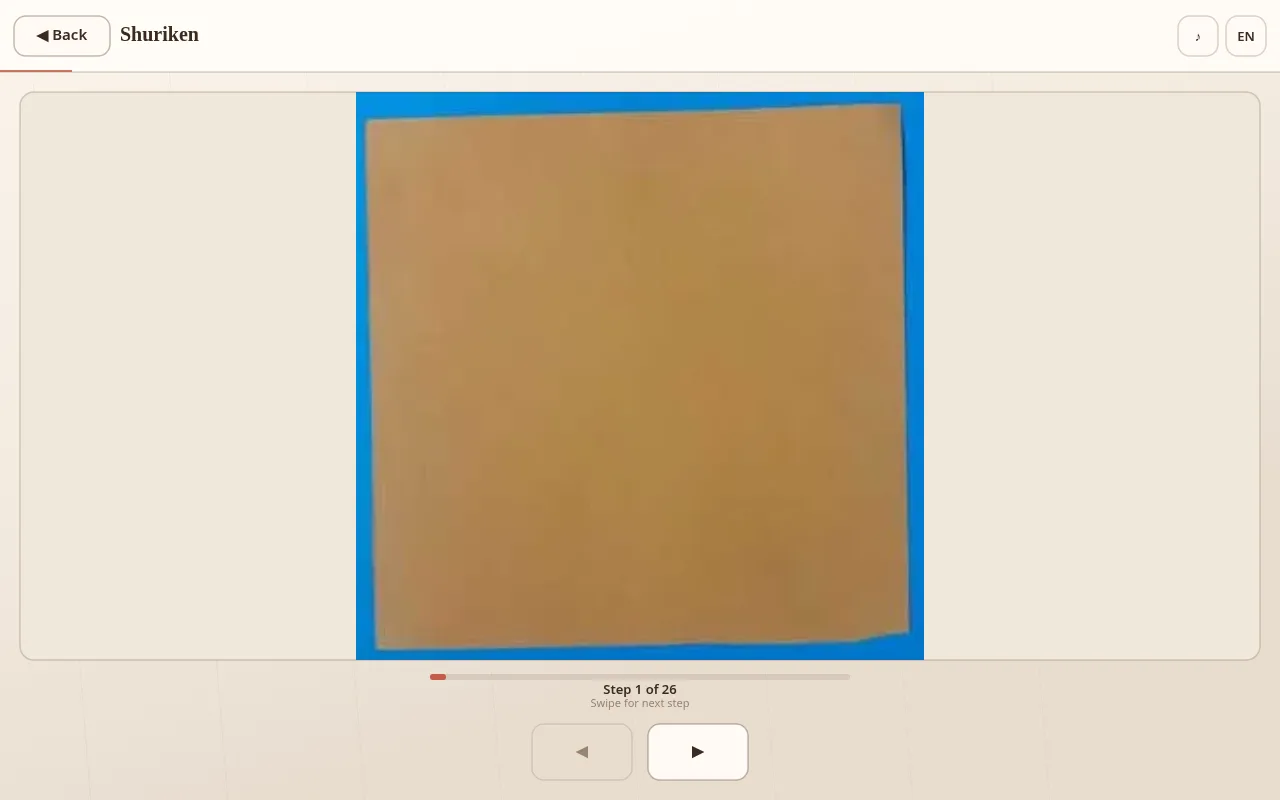
Tap any card. The viewer replaces the grid: ◀ Back and the model name on the left, the same EN chip on the right, a large square photo in the middle, a thin progress bar under it, then Step X of Y and Swipe for next step. Two big arrow buttons sit at the bottom. On the last step the right button becomes Done.
Controls we actually used:
- ArrowRight / ArrowLeft on the keyboard — moved one step at a time.
- Bottom arrow buttons — same as the keys.
- Swipe — the UI invites it; on a phone that is the natural path.
- ◀ Back — returns to the catalog without losing your place in the grid.
There is no on-screen fold text beyond the step counter. The teaching is the photograph: hands, creases and coloured paper against a bright blue surface in every shot we saw.
First fold: Shuriken, start to Done
We chose Shuriken (26 steps) from page 1 — short enough for a first session, long enough to feel the progress bar move. We also peeked at Fish (31) and Cranes (34) to confirm the same viewer chrome; both opened on a flat sheet at Step 1 of their own totals.
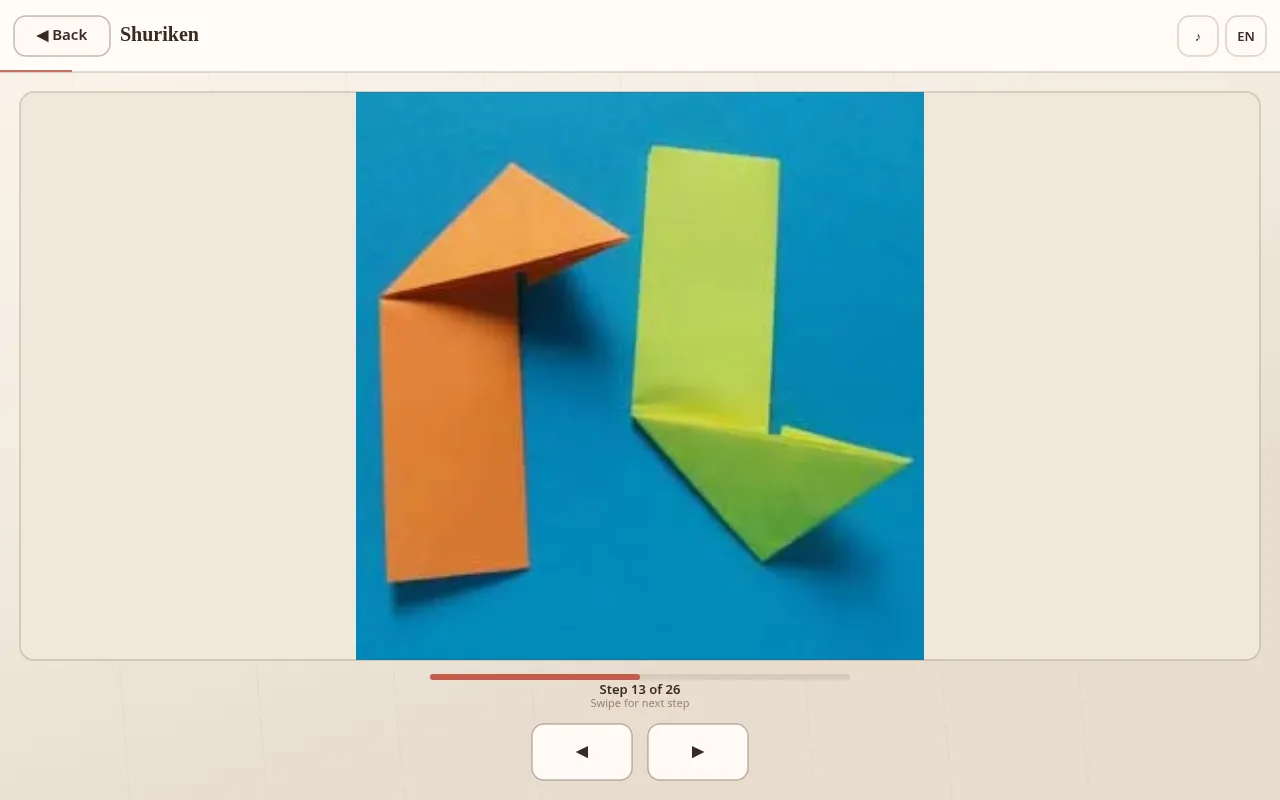
Early steps build two strips. By Step 5 we had a lime-green square and a narrow orange rectangle laid on the blue backdrop. Midway, at Step 13, both strips had pointed ends folded — orange tip down, green tip up — the classic half-shuriken modules before they interlock.
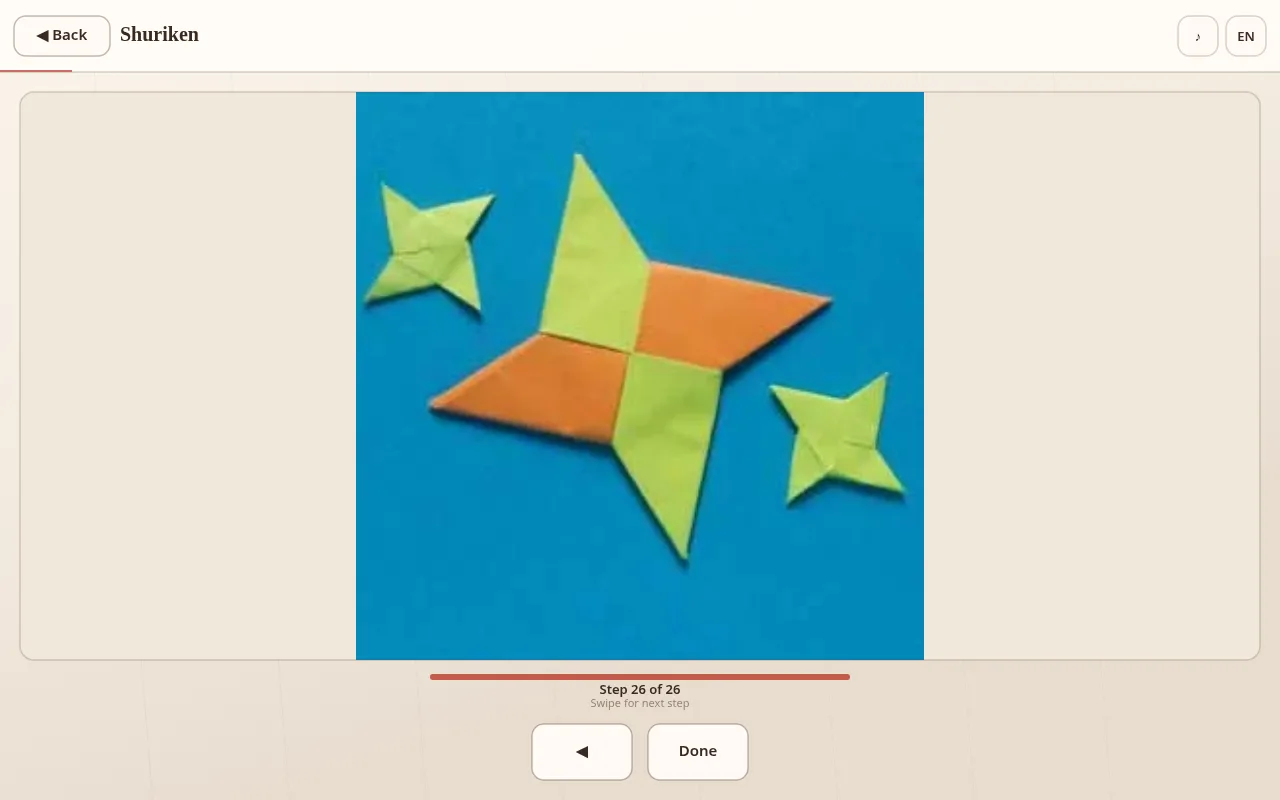
We kept tapping ArrowRight until Step 26 of 26. The progress bar filled solid orange-red, the right control flipped to Done, and the final photo showed a finished orange-and-green shuriken with two smaller all-green stars beside it. No score, no timer, no “new best” — just the completed model.
What we would do next
- Start under 30 steps. Airplane (17), Star (19), Spinningstar (24) and Shuriken (26) are the shortest badges we recorded. Save Dragon (131) and Dragonfly (202) for a long evening.
- Keep real paper next to the screen. The photos assume you are folding along; pausing on a step with the keyboard is easier than pinching a phone while both hands hold a crease.
- Use the step count as a difficulty hint. A 17-step airplane and a 202-step dragonfly share the same viewer — only the length changes.
- Swipe the catalog before you commit. Page 3 hides some of the easiest models (Star, Ring); they are easy to miss if you only scan page 1.